Update Mobile Profiles
In the Accounts module, you can update existing mobile profiles to modify their name, assigned users, location, and access to features like chat rooms or event buttons. This ensures that users always have the correct settings based on their current roles or responsibilities.
To Update a Mobile Profile
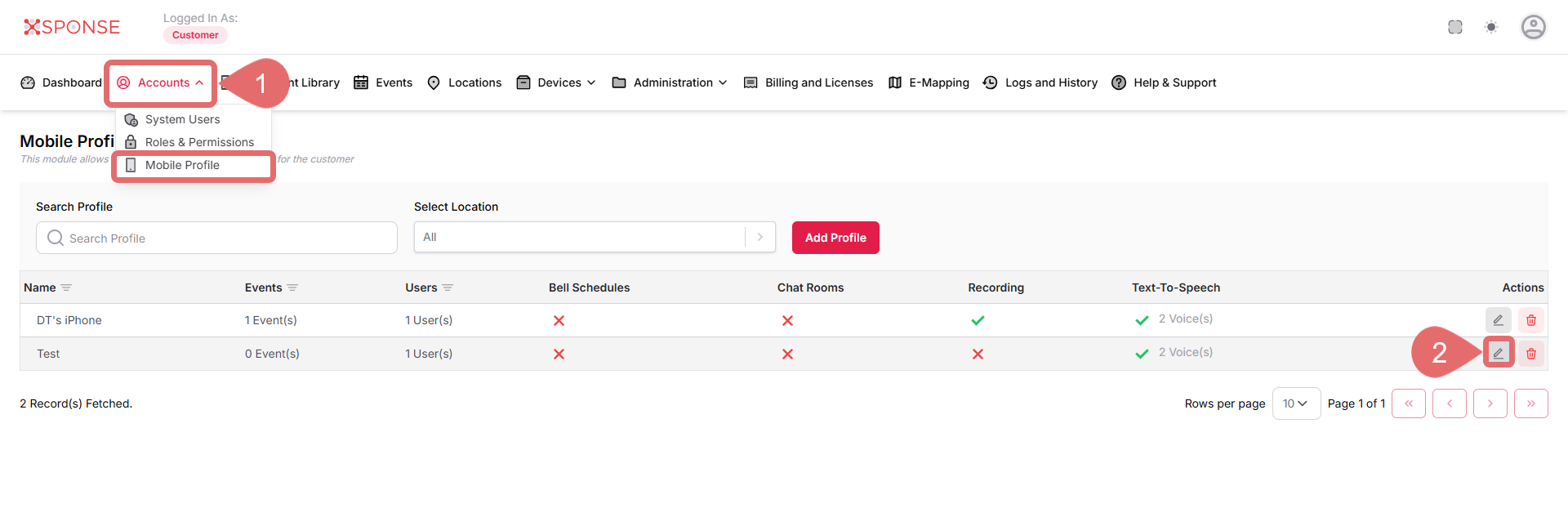
- Go to Accounts > Mobile Profile.
- Click the Update Profile icon next to the mobile profile you want to update.
- Make the necessary changes:
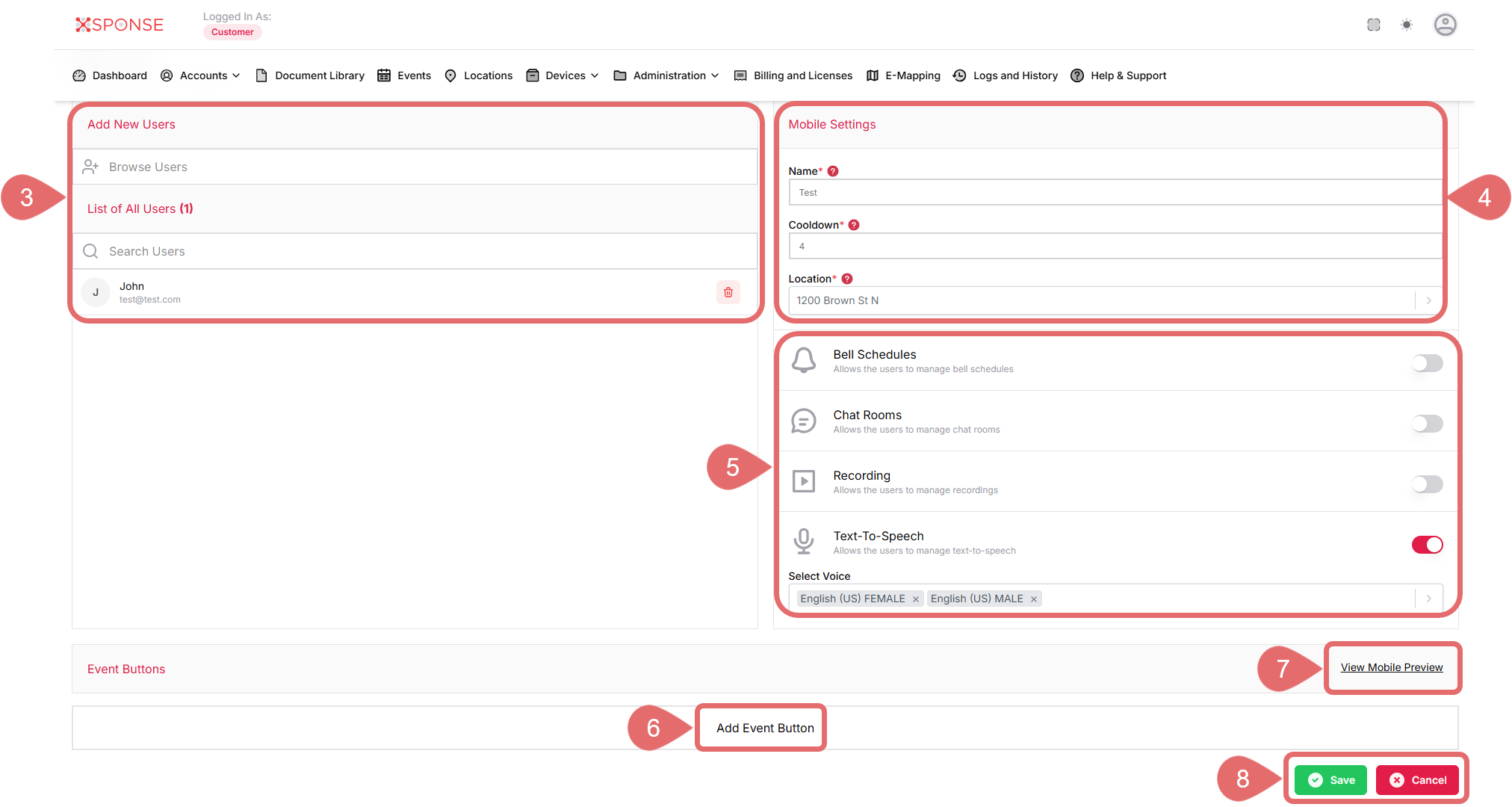
- Add New Users: Click the Add icon to include more users in the profile.
- List of All Users: Shows all users currently assigned. Each entry has a delete icon to remove a user.
- Search Users: Use the search bar to find users by name.
User RequiredTo save, you must have at least one user assigned to the profile.
- Update the Mobile Profile details:
- Name: Edit the profile name if needed. This field is required.
- Cooldown: Adjust the cooldown period in seconds. This field is required.
- Location: Change the location from the dropdown list. This field is required.
- Update the Additional Settings using the toggles:
- Bell Schedules: Toggle to allow or restrict access.
- Chat Rooms: Toggle to allow or restrict access.
- Recording: Toggle to enable or disable.
- Text-To-Speech: Toggle to enable or disable text-to-speech.
- If enabled, choose a voice from the dropdown.
Example:
- English (US) FEMALE
- English (US) MALE
- If enabled, choose a voice from the dropdown.
Example:
- (Optional): Click Add Event Button to include a new event button.
- Fill in the required event button details:
- Name: Enter or update the name for the event button.
- Event: Select or change the triggered event.
- Icon: Choose an icon.
- Color: Select a color.
- Geolocation: Enable or disable geolocation for the event.
- Use the Delete Event Button icon to remove an existing button.
- Fill in the required event button details:
- Click View Mobile Preview to see the updated mobile profile layout on a simulated device.
- Click Save to apply the updates, or Cancel to discard the changes.
See Also
To complement your knowledge of this process, check the following pages: